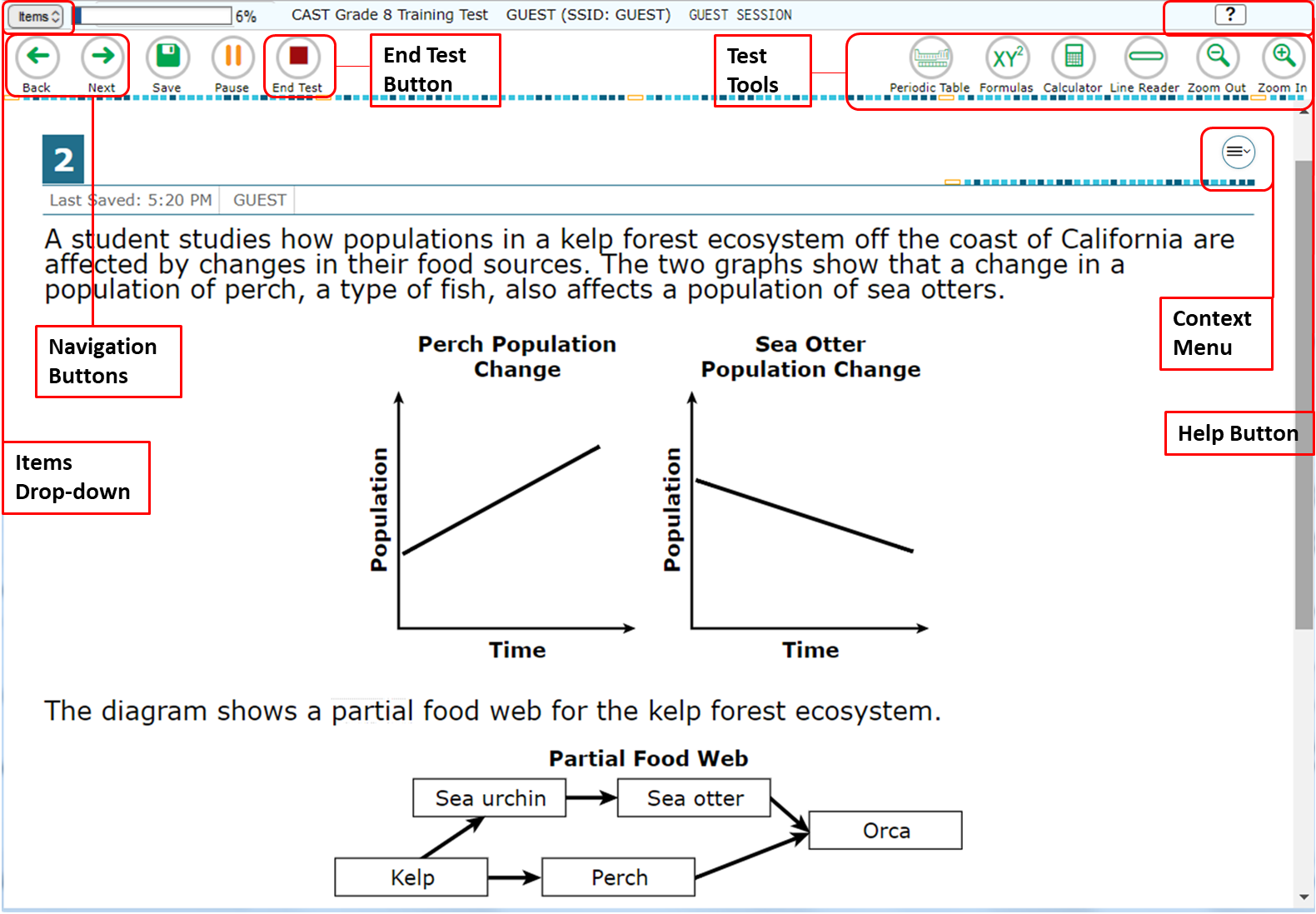
Sample Test Page
There are two types of test tools available:
 ).
).| Global Tools | Instructions |
|---|---|
| Help (?) button |
To |
| Calculator | To use the on-screen calculator, select Calculator in the global menu. This tool is available for the following tests:
|
| Multiplication Table | |
| Number Table | |
| Periodic Table | To This tool is available for the following tests:
|
| Reference Sheets | To view the on-screen This tool is available for the following tests:
|
| Test Settings | When available,
After making changes, select Apply. To reset |
| Zoom buttons | To enlarge the text and images on a test page, select Zoom In. |
| Context Menu Tools | Instructions |
|---|---|
| Expand buttons | When the screen is divided vertically (up and down), test questions (items) can be expanded to the width of the screen. When used with the Expandable Passages tool (if Expandable Passages is not turned off by the test administrator), this tool can be used to expand either passages or questions.
Expandable Item arrow icons can also be used when the screen is divided horizontally (side to side) to expand an item |
| Mark for Review | To mark a question for review, select Mark for Review from the context menu. The   appears next to the number appears next to the number for the selected question. for the selected question. |
| Notepad | To make notes You can only access your notes for a question on that question’s test page. |
| Strikethrough | For selected response questions, you can cross out an answer option to focus on the options you think might be correct. There are two options for using this tool:
|
| Text-to-Speech | To listen to passages and questions, select a speak option from the context menu.
To listen to
|
| Word Prediction | When this tool is on, suggested words pop up in a menu as you type a written response. You can select a word in the pop-up menu instead of typing it out. To turn this tool off, select |
Science tests require you to have a print accommodation if you need to request printouts.
To send a print request to the Test Administrator, choose from the following options:
 appears next to the question number.
If you are testing with Text-to-Speech, you can listen to instructions, passages, and questions in the test. For ELA tests, some passages are not read aloud.
To listen to content with the Text-to-Speech tool:
 beside the
  button
  in the upper-right corner to change some test settings. These may include:
 below the global menu. To collapse the expanded passage section, select the left arrow icon
  in the upper-right corner.
 or collapse the expanded item
  . The arrow icons will be on the right side of the screen.
 appears next to the question number on the test page.
 ] to hear the text on the screen read aloud.
 ] and then select one of the item responses to hear it read aloud.
 ] to hear the question and item responses read aloud.
 . To turn the tool on, select
  .
.