Overview of Data Entry Interface
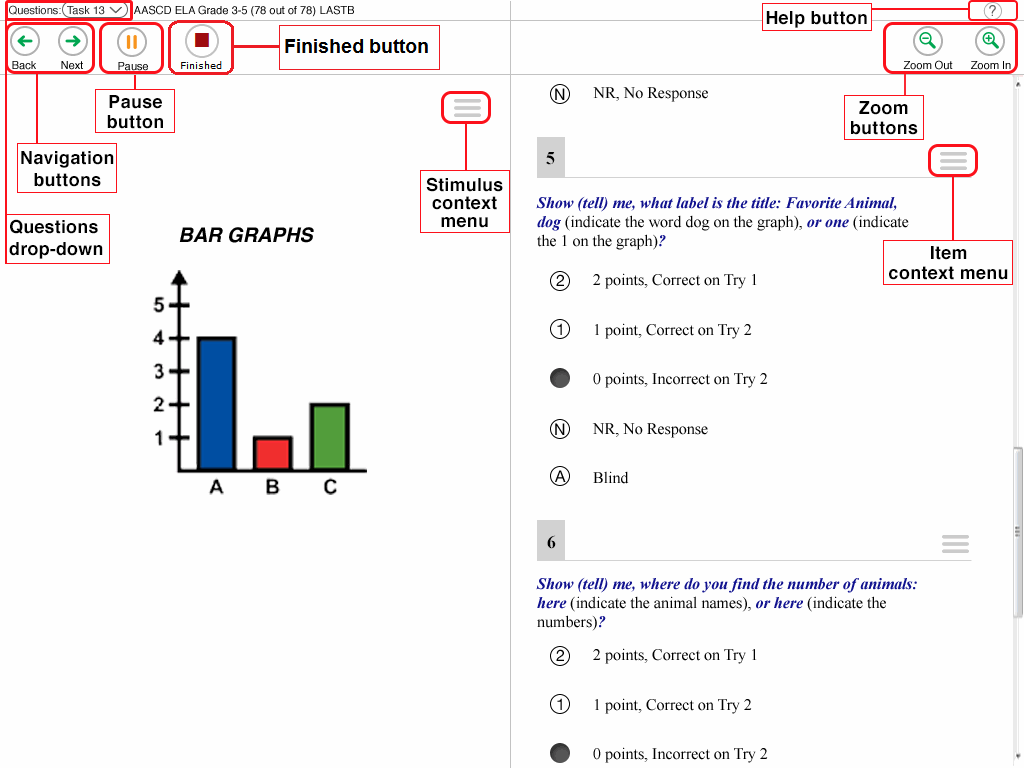
The following test tools are available:
- Global Tools: These tools appear in the global menu at the top of the screen.
- Context Menu Tools: These tools are for passages and questions. To use these tools, open the context menu
 .
.
| Global Tools | Description |
|---|---|
| Help (?) button |
To  button button |
| Finished button | This button appears after you enter data for all questions. Select this button to begin the test submission process. |
| Pause button | To pause a test, select Pause in the global menu. Pausing the test will temporarily log you out. |
Protractor | To view the on-screen ruler, select Protractor in the global menu. You can move the protractor around the test page and drag the circle icon to rotate it. |
| Questions dropdown list | To quickly navigate to a specific test page, select a question number from the dropdown list in the upper-left corner. Pages with questions that were marked for review display “(marked)” in this list. |
| Navigation buttons | To move between test pages, use the Back and Next buttons in the upper-left corner. |
| Test Settings | When available,
After making changes, select Apply. To reset |
| Zoom buttons | To enlarge the text and images on a test page, select Zoom In in the global menu. You can zoom in up to four levels. To undo zooming, select Zoom Out in the global menu. |
 in the upper-right corner to change some test settings. These may include:
| Context Menu Tools | Description |
|---|---|
| Mark for Review | To mark a question for review, select Mark for Review from the context menu. |
| Notepad | To take notes, select the Notepad option from the context menu. |
| Strikethrough | For selected-response questions, you can cross out an answer option to focus on the options you think might be correct. There are two options for using this tool:
|